
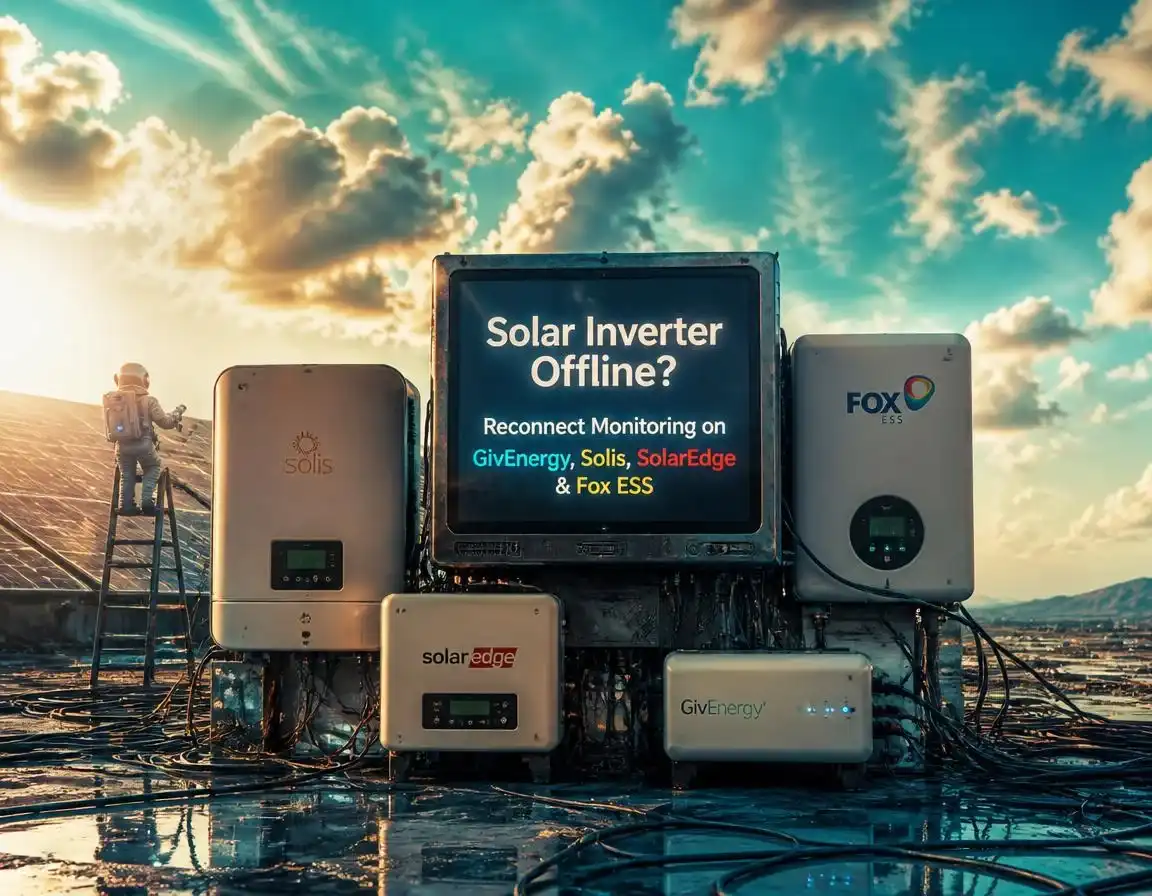
Solar Inverter Offline?

Solar Inverter Offline? How to Reconnect Monitoring on GivEnergy, Solis, Fox ESS, SolarEdge & Huawei
The short version
If your app says your solar inverter is offline, your panels are almost certainly still generating and exporting. Only the monitoring link has dropped, and your export payments come from your meter, not the app. Look at the inverter itself first, then rule out night-time sleep, your router (most Wi-Fi sticks only see 2.4 GHz) and the manufacturer’s cloud. If it’s still dark, re-pair the stick with the brand steps below. The reset differs by brand: a two-second switch flick on SolarEdge, about five seconds on Solis and Fox ESS, and around fifteen seconds on older GivEnergy dongles. GivEnergy owners have an extra wrinkle, because GivEnergy Ltd went into administration in April 2026. A dead inverter screen or an error code isn’t a Wi-Fi problem, so that goes to your installer.
Seeing your solar inverter offline in the app is one of the most common worries in UK home solar, and the honest answer to “am I losing money?” is almost certainly not today, but you do want it fixed. An offline badge hides faults, and in midsummer a hidden fault can cost £46 to £92 a month on a typical 4 kWp system. This guide goes through the diagnosis in order, then gives re-pairing steps for GivEnergy, Solis, Fox ESS, SolarEdge and Huawei taken from each manufacturer’s own published guidance, and finishes with the point where it stops being a Wi-Fi problem and becomes your installer’s.
Offline doesn’t mean broken
Your inverter does two separate jobs. It converts the DC from your panels into the AC your home uses, and it reports what it’s doing to the manufacturer’s cloud through a small Wi-Fi stick (sometimes called a dongle or data logger). “Offline” means the second job has failed. The first carries on regardless, because the inverter doesn’t check with your router before it generates.
Your export income is safe as well. Smart Export Guarantee payments are worked out from the export meter, not from the app, as the GOV.UK Smart Export Guarantee guidance explains. To qualify you need an MCS-certified install and a smart meter, so if it’s the meter that has gone quiet, that’s a separate fault, and our smart meter export readings guide covers it.
The money you can lose is indirect. It’s the fault you can’t see. A string that trips or an inverter that locks out while the app is already dark won’t tell anyone, and every day it lasts costs you. That’s the reason to fix the connection promptly rather than shrug at it.
If you have a battery, offline matters more
A schedule already saved on the inverter usually keeps running without the cloud. GivEnergy, for one, says its systems carry on working independently of the cloud. What stops is anything that depends on a cloud command: remote mode changes, tariff-linked battery control and virtual power plant payments. You also can’t confirm the battery did what you asked. Our guide to batteries that work well with Octopus Agile and Flux shows which set-ups lean on the cloud link.
The six quick checks, in order
- Look at the inverter, not the app. Is the screen or light bar showing live output, normally green? Then the inverter is healthy and you have a communication problem. A dark screen in daylight, a red light or an error code is a different, bigger problem, so skip to when to call your installer. If you have a generation meter, check its numbers are going up.
- Check the time of day. Many string inverters without a battery go to sleep when the panels stop producing, and the Wi-Fi stick, which is powered through the inverter, sleeps with it. The app then shows offline overnight and recovers after sunrise. If yours is only dark at night or first thing, look again at midday before touching anything. Systems with a battery tend to keep the stick powered, so overnight dropouts there are worth chasing.
- Read the stick’s lights. Most sticks have two or three LEDs for power, link to the inverter and link to the router or cloud. Power on with the network light off or flashing fast usually means it can’t reach your router. The meaning of each pattern varies by model, so use the legend in your manual.
- Question the router. Have you changed the Wi-Fi name or password, switched provider, added a mesh or had a router firmware update? Any of those is a prime suspect. If other 2.4 GHz gadgets, such as old smart plugs or a doorbell, dropped off at the same time, the router is your culprit.
- Restart in a sensible order. Restart the router first (off for 30 seconds). Then reseat the stick: unscrew the collar or pull it out, wait 15 seconds and push it back in. A surprising number of “dead” sticks are loose ones. Only if that fails, restart the inverter at its isolators. The usual order is AC isolator off, then DC isolator off, and back on in reverse (DC first, then AC), but follow the label or your commissioning pack, and use the manufacturer’s order if you have a battery. Our guide to turning off solar panels safely has the detail. Never open the inverter or unplug DC connectors in daylight.
- Compare the web portal with the app. Apps cache and glitch. If the manufacturer’s browser portal shows live data and the app doesn’t, update or reinstall the app and carry on with your day. GivEnergy’s own advice for app errors is to reinstall first.
| What you’re seeing | Most likely cause | First move |
|---|---|---|
| Offline overnight, fine by mid-morning | Inverter asleep, stick unpowered. Normal on many string inverters | Nothing to fix. Recheck at midday |
| Offline since a router or password change | Stick still holds the old Wi-Fi details | Re-pair it, or give the new router the old name and password |
| Drops every few days or after router updates | Band merging, firmware or weak signal | Dedicated 2.4 GHz network, extender, or Ethernet |
| Everyone with your brand is dark | Manufacturer cloud outage | Wait a day before resetting anything |
| Portal shows data, app doesn’t | App glitch | Update or reinstall the app |
| Stick has no lights | Unseated or dead stick | Reseat it, then replace if needed |
| Inverter screen dark or showing a code | Not a Wi-Fi problem | Call your installer |
Your Wi-Fi, or their cloud?
Before you re-pair anything, rule out the manufacturer. Every platform has an off day, and Fox ESS owners in particular have reported platform-wide offline spells on community forums. The tell-tale signs are a router that works for everything else, an inverter that looks healthy, and someone else on the same brand (a neighbour, a forum thread, the brand’s status page) being dark too. Give an outage a day to clear. Factory-resetting a stick in the middle of one is the classic way to turn a five-minute wobble into a re-pairing job.
If only you are dark, carry on to the brand sections. GivEnergy is a special case, covered in its own section, because the company behind the hardware is in administration.
What being offline actually costs you
The hidden-fault risk is the only real cost, so let’s put numbers on it. Take a 4 kWp system in central England. Our UK solar output data has it producing about 560 kWh in June and about 105 kWh in December. At the rates we use across the site (26p a unit imported, 7p a unit exported, half of generation used at home) each unit is worth roughly 16.5p. A string fault that takes out half the array, or a dead inverter that takes out all of it, then costs this over a month:
What a month of hidden fault costs on a 4 kWp system
Worked example: 560 kWh in June and 105 kWh in December, valued at 16.5p a unit. Real figures vary with location, roof angle and how much you use at home.
So a fault costs about five times more in June than in December, which is exactly when a quiet fault is easiest to miss. Fixing monitoring is cheap insurance. If you want a second pair of eyes that doesn’t depend on the inverter, a monthly photo of the generation meter (if your system has one) or an app that reads your smart meter data works well. Our best solar monitoring apps guide compares the options, and the solar panel monitoring system guide explains how the different set-ups report.
The brand-by-brand reconnection table
The pattern is the same on every brand: reseat the stick, put it into set-up mode, join its temporary hotspot (or let the app find it by Bluetooth), then give it your home Wi-Fi details. Before you start, stand next to the inverter with your phone, turn mobile data off while you’re joined to a stick’s hotspot, forget any other Wi-Fi networks your phone might jump to, and have your 2.4 GHz network name and password ready.
| Brand | App or portal | How you re-pair | Wi-Fi band | Watch out for |
|---|---|---|---|---|
| GivEnergy | GivEnergy app and web portal | App: Settings, then Setup WiFi Dongle. Or hold the reset button (about 15 s on older dongles), join the dongle’s hotspot and use its set-up page | 2.4 GHz only | Some cloud features need a paid Premium plan. GivEnergy Ltd is in administration |
| Solis | SolisCloud | SolisCloud app: Service, then WiFi Configuration. Hold the stick’s reset button about 5 s for set-up mode | 2.4 GHz (the S5 stick also does 5 GHz) | Inverter address must be 01. Don’t factory-reset repeatedly |
| Fox ESS | FoxCloud 2.0 app | Me or MyFox tab, then Wi-Fi settings and reconfigure. Hold the dongle’s reset about 5 s until the LED flashes fast | 2.4 GHz | Fussy about repeaters and mesh. Can take up to half an hour to show online |
| SolarEdge | mySolarEdge | Menu, then Inverter Communication, scan the QR code, flick the red switch to P and release within about 2 s | 2.4 GHz | Steps are for screenless inverters. Older LCD models differ |
| Huawei | FusionSolar | Local commissioning in the app via the dongle or inverter hotspot, then pick your home network. Or use the dongle’s Ethernet port | 2.4 GHz, WPA2 | Signal at the inverter matters. The login may be your installer’s |
Reset times and menu names come from the manufacturers’ published guides and shift with firmware. If your screen doesn’t match what’s described here, trust the manual for your exact model.
GivEnergy inverter offline
Start with the context, because it changes the first question you ask. GivEnergy Ltd, the hardware company, went into administration on 9 April 2026. The app and portal are run by a separate company, GivEnergy Software Ltd, which isn’t in administration, and the latest reports (September 2026) say the cloud is still running. Our GivEnergy administration guide has the full picture, including what it means for your warranty.
So before touching the dongle, check two things. First, is the app message about a subscription? GivEnergy Software moved remote access, history, automation and third-party API access to a paid Premium plan. For subscription errors, GivEnergy’s advice is to reinstall the app or use the web portal. Second, does the system still work locally? GivEnergy says you can manage the system over your home network through the app, and that the system keeps functioning without the cloud.
If the dongle really has dropped off your Wi-Fi, there are two routes. In the app, go to Settings, then Setup WiFi Dongle, and follow the prompts. Or do it by hand. Hold the dongle’s reset button (GivEnergy’s guide says 15 seconds on the older dongles), then wait before reconnecting. GivEnergy’s guides say 20 minutes or more. Join the dongle’s hotspot from your phone, open its set-up page in a browser, switch it to station mode and choose your 2.4 GHz network with WPA2 security. Within a few minutes the LED should go solid and the portal should show the system online. Newer Wi-Fi 6 and AECC Multi-Connect dongles (used on All in One 2, Gateway 2 and Gen 4 units) are set up from their own hotspot pages, so match the guide to your dongle.
On the router side, GivEnergy dongles only support 2.4 GHz, need port 7654 open and want a decent signal at the inverter. Ubiquiti owners should switch off Protected Management Frames. If you’ve simply swapped routers, the neatest fix is to give the new one your old network name and password, and the dongle reconnects by itself.
Replacement parts and warranty
With GivEnergy Ltd no longer trading, a new dongle isn’t a call to the manufacturer. Ask your installer or a distributor, and consider a wired connection, since the newer dongles support Ethernet. GivEnergy Ltd has also said it won’t honour hardware warranties, so your installer is the first port of call. Our solar panel warranty guide explains which protections still apply.
Solis inverter offline (SolisCloud)
Solis’s own troubleshooting list puts the same four culprits at the top: trying to join a 5 GHz network, a wrong password, a weak signal and a router firewall. Work through those before you reset anything. A router firmware update is a classic trigger for a stick that has been fine for years.
First identify the stick, because the route depends on the model. The S3 and S4 sticks use a browser set-up page that you reach from the app. The S2 and S5 sticks are set up over Bluetooth in the same app. In SolisCloud, open Service, then WiFi Configuration, enter the stick’s serial number or scan its QR code, pick your network and type the password carefully. Turn mobile data off and forget other networks first, or your phone will wander off the stick’s hotspot halfway through.
If no Solis network appears, hold the stick’s reset button for about five seconds until the LEDs blink fast. It can take up to a minute for the hotspot to show up on your phone. Holding for ten seconds is a full factory reset that wipes the network settings and stored data, so keep that for when everything else has failed and don’t repeat it. Two more things catch people out: if the stick is plugged straight into the inverter, the inverter’s communication address needs to be 01, and when refitting a stick you turn the black ring, not the silver stick itself, because forcing it can damage the inverter.
If it still won’t hold, a Wi-Fi extender near the inverter broadcasting a plain, visible 2.4 GHz network usually settles it. Some sticks, such as the S2-WL-ST, also have a LAN connection, which ends the argument. A replacement Wi-Fi stick is cheap next to the inverter, but buy the right model for yours. Our Solis inverter review covers the range.
Fox ESS inverter offline (FoxCloud)
Make sure you’re using the current FoxCloud 2.0 app, since the older app behaves differently. In the app, open the Me or MyFox tab, choose the dongle, then Wi-Fi settings and reconfigure. On the dongle, hold the reset button for roughly five seconds until the LED flashes quickly, which means it’s ready for set-up. The app then asks you to join the dongle’s hotspot (its name starts with W-) and to pick your home network. Only 2.4 GHz networks will work. The dongle’s own manual, reachable from the QR code on its back, has the default hotspot details.
Two practical notes from Fox owners on the community forum. After any reconfiguration the dongle can take half an hour or more to appear in the cloud, so wait before assuming it failed. And a commissioning engineer quoted on the forum says these dongles can dislike some repeaters and mesh systems, so a dedicated 2.4 GHz network from the main router is the safest option. If the hotspot doesn’t appear, unscrew the collar, pull the dongle out, wait 15 seconds and refit it. A long press of about ten seconds on the reset button does a full reset if you’re really stuck.
If your system went dark on a day you changed nothing at home, check whether other Fox owners are affected before you re-pair hardware that was never broken. Our Fox ESS vs GivEnergy comparison is worth a look if the outage has you wondering about the brand.
SolarEdge inverter offline (mySolarEdge)
SolarEdge makes this one of the simplest. On a screenless inverter, open the mySolarEdge app, tap the menu and choose Inverter Communication. Scan the QR code on the side of the inverter. When the app asks, move the red ON/OFF/P switch to P and let go within about two seconds, which wakes the inverter’s own Wi-Fi. Join that network from the app, pick your home Wi-Fi from the list, enter the password and tap Join. The inverter reconnects by itself. A blue LED shows it’s communicating with the monitoring platform.
Don’t hold the switch in P for longer. Some installers’ guides use a 30-second hold for a manual reconnection, which is a different method, so don’t mix the two up. All SolarEdge Wi-Fi connections need a 2.4 GHz network, and your phone needs to stay close to the inverter during set-up.
If your system doesn’t use Wi-Fi at all, re-pairing won’t help. Some installers fit an Ethernet cable or a cellular modem, and a cellular data plan may have expired, so ask your installer what yours uses. Older inverters with an LCD screen use a different menu route, which is the manual’s job to explain. If you’re comparing how SolarEdge and Enphase report their data, see our SolarEdge vs Enphase monitoring comparison.
Huawei inverter offline (FusionSolar)
The Huawei SUN2000 leads our list of popular UK inverters, and our Huawei SUN2000 inverter review covers it in full. Its monitoring runs through a Smart Dongle (the SDongleA-05 WLAN-FE gives you both Wi-Fi and an Ethernet port) that reports to FusionSolar. Huawei’s guidance is to use a 2.4 GHz network with WPA2 security, and older WEP security fails.
Re-pairing is done through local commissioning in the app. Connect your phone to the dongle or inverter’s own hotspot, open the app’s commissioning option and select your home network. If the dongle’s hotspot has been switched off, Huawei’s quick guide says to turn it back on from the app, under the plant’s authorization settings (WLAN wakeup). The local commissioning login may be your installer’s rather than yours, so if it isn’t, ask them to do the five-minute re-pair rather than guessing passwords.
Owners on installer forums report the same pattern again and again: the reason Wi-Fi won’t hold is usually the signal at the inverter. A Wi-Fi extender within a few metres of the inverter works, but plugging the dongle’s Ethernet port into the router (or a powerline adapter) is the reliable fix, and it stops the problem coming back.
Enphase, Sigenergy, Sunsynk and other brands
The same pattern applies. Enphase systems report through the IQ Gateway (the Envoy) rather than through the microinverters, so an offline gateway costs you per-panel data, not power. Reseat, put the unit into set-up mode, join its hotspot or let the app find it by Bluetooth, and give it a 2.4 GHz network. Our reviews of the Enphase IQ8, Sigenergy and Sunsynk cover how each reports its data.
When it stops being a Wi-Fi problem
Call your installer if the inverter screen is dead or showing an error code rather than output, since that’s a generation fault and our inverter fault codes guide translates what it’s saying. Call them too if a fresh stick still won’t pair, or if the system has stopped producing altogether, in which case read solar panels producing nothing because that’s a different fault tree. If your solar went off after a power cut, what G99 reconnection actually does explains why it can stay off.
Warranty cover is worth sorting out before you open anything up. Your installer’s workmanship warranty and your Consumer Rights Act rights sit with the installer, not the manufacturer, which matters if the manufacturer has gone bust. Our guide on what to do if your installer goes bust covers that situation, and you can use our installer finder if you need a new MCS-certified one. When you get in touch, send photos of the inverter screen or lights and the stick’s LEDs, plus the last time the app received data and what changed at home. That saves a round of questions.
If the inverter has died outside warranty, the choice becomes repair or replace, and the numbers are very different. Our 2026 solar repair cost guide and inverter replacement guide cover both. If the numbers look wrong rather than absent, see solar panels underperforming.
Stop it coming back
- Give the stick its own plainly named 2.4 GHz network. Split the bands on your router and don’t hide the 2.4 GHz name.
- Swapping routers? Give the new one your old network name and password and the stick reconnects by itself. Changing credentials is the most common self-inflicted offline event, so re-pair the same day if you can’t copy them.
- Fix the signal. A router or extender closer to the inverter beats repeated resets, and if your stick supports Ethernet (GivEnergy’s newer dongles, Solis S2-WL-ST, Huawei WLAN-FE), a cable is better still.
- Change any default hotspot or admin password once you’ve re-paired, and keep the stick’s firmware current. Our piece on security flaws found in solar inverters explains why it matters.
- Switch on offline or fault notifications in the app if it offers them, so you hear about a gap in a day rather than a month.
- Keep a note of the inverter model, stick model, portal login and your installer’s number. If you have a battery, screenshot its schedule and reserve settings before changing anything.
The one-line takeaway
Offline is a reporting problem, not a generation failure, but it also hides real faults. Check the inverter, rule out night-time sleep, work through the router and cloud, then re-pair with your brand’s steps and switch on alerts.
Frequently asked questions
Do my solar panels still work when the inverter shows offline?
Usually, yes. Offline only means the monitoring link has dropped. If the inverter’s screen or lights show live output and there’s no error code, it is still generating and exporting. Smart Export Guarantee payments come from your export meter, not the app, so income carries on. The real cost is that a genuine fault can hide behind the offline badge for weeks. Many string inverters without a battery also go offline overnight and return after sunrise, which is normal.
Why does my solar inverter keep going offline?
The usual causes are a router change (new name, new password, a firmware update or merged Wi-Fi bands), a stick that can only see 2.4 GHz, a weak signal at the inverter, a manufacturer cloud outage, or a failing Wi-Fi stick. A dedicated plainly named 2.4 GHz network, a router or extender closer to the inverter, or an Ethernet connection where the stick supports one stops most repeat dropouts.
How do I reconnect my solar inverter to Wi-Fi after changing router?
The quickest fix is to give the new router your old Wi-Fi name and password, so the stick reconnects by itself. Otherwise put the stick into set-up mode and give it the new details through the brand’s app: SolarEdge uses mySolarEdge and a short flick of the inverter switch to P, Solis uses WiFi Configuration in SolisCloud, Fox ESS uses the FoxCloud app, GivEnergy uses Setup WiFi Dongle in its app, and Huawei uses local commissioning in FusionSolar. Use a 2.4 GHz network.

One Comment